

- R-CLI
- R-CLI Overview
R-CLI
R-CLI Overview
Install Backboard R-CLI, sign in, open a project, and run your first session in the terminal.
Backboard R-CLI is a coding agent that runs in your terminal. Start it inside a project, type what you want, and it can read files, edit files, run commands, use MCP tools, and ask for clarification when needed.
This page covers the smallest useful workflow. Once you are comfortable, see Permissions to control what the agent may do, and Checkpoints to undo its file changes.
Install Backboard R-CLI
Install the backboard command for your operating system:
macOS / Linux
Windows PowerShell
curl -fsSL https://app.backboard.io/api/cli | bash
Restart your terminal if the command is not found, then verify the install:
backboard --version
backboard --help
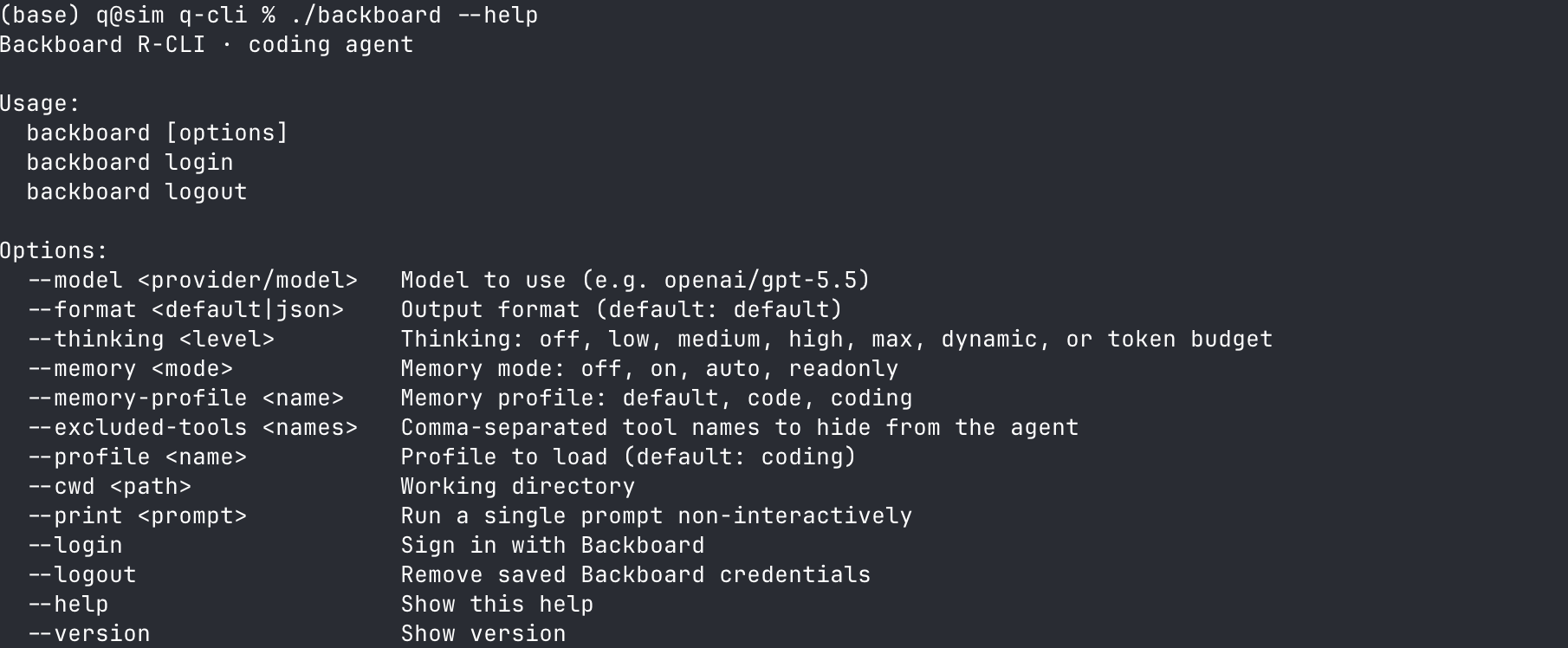
Verify the Backboard R-CLI command is available.
Sign in
If you start R-CLI before signing in, it will ask you to log in or sign up.
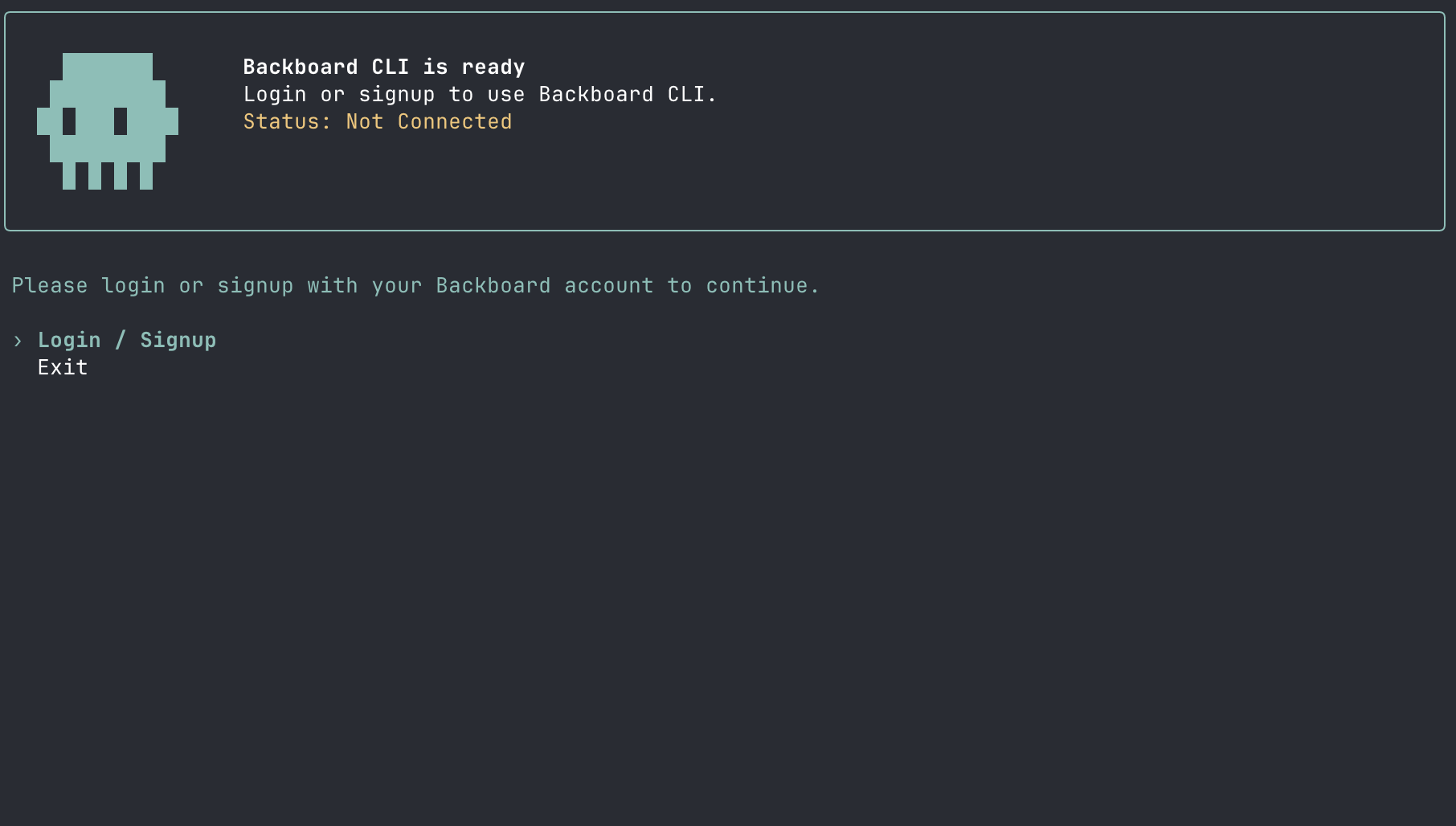
R-CLI prompts for login when no saved credentials are available.
Run:
backboard login
The CLI prints a browser URL, a short code, and a QR code. Either open the URL on this machine, or scan the QR code with your phone to approve the login there. Approve the device login, then return to the terminal.
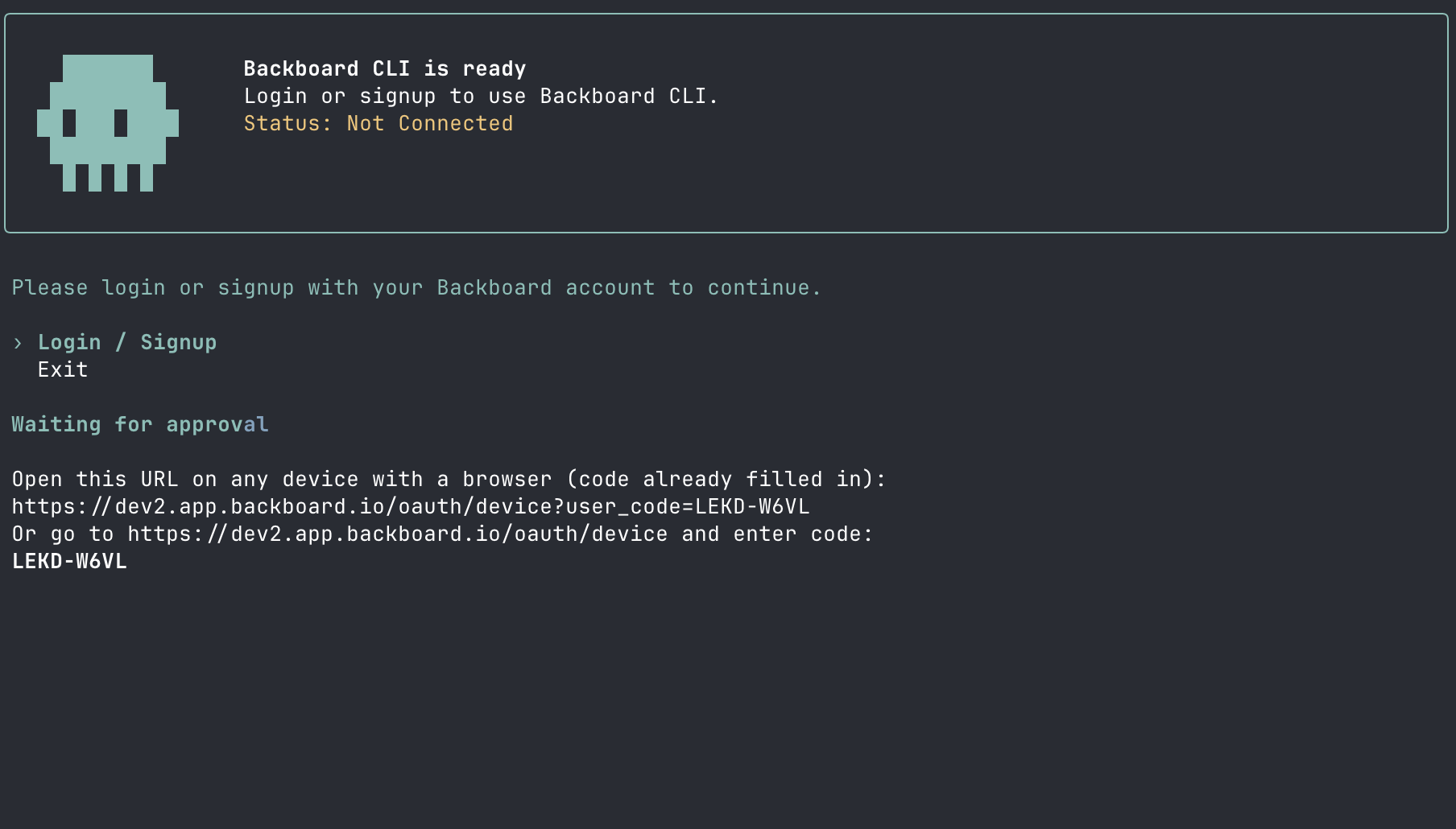
The terminal shows the device login URL and user code.
The QR code is hidden automatically when the terminal window is too small to render it without wrapping. The URL and code are always shown, so a narrow terminal never blocks login.
After login, Backboard R-CLI saves credentials locally so future sessions can start without another browser approval.
Useful auth commands:
backboard login
backboard logout
Inside the interactive CLI, you can also type:
/login
/logout
Create or open a project
R-CLI works inside a normal folder on your machine. You can use an existing repository:
cd /path/to/existing/repo
backboard
Or create a new project folder first:
mkdir my-app
cd my-app
git init
backboard
R-CLI does not require git — checkpoints let you undo file changes without it. Keeping your project in git is still recommended so you have a second layer of review.
Start your first project session
Move into the project you want to work on:
cd /path/to/your/project
backboard
Or start from anywhere and point R-CLI at a folder:
backboard --cwd /path/to/your/project
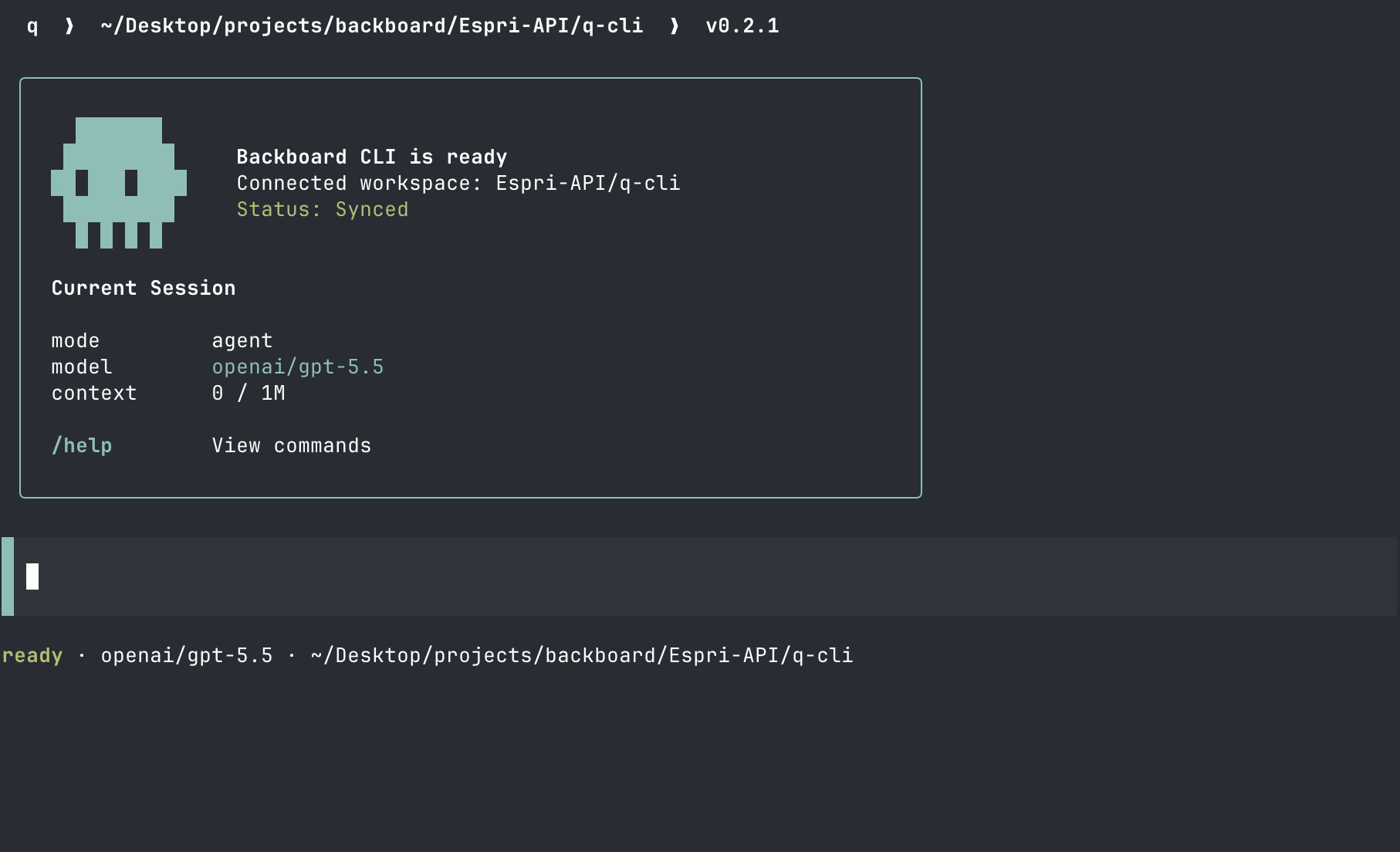
Backboard R-CLI opens inside the current workspace.
The status bar at the bottom shows the current permission mode, the model, and the thinking mode:
⏸ Manual mode · (shift+tab to cycle) · openai/gpt-5.5 · medium
Press Shift+Tab at any time to cycle the permission mode. See Permissions for what each mode allows.
Ask your first question
Type a normal request and press Enter:
Explain this project in simple terms.
For coding tasks, be direct:
Find the bug in the login page.
Add tests for the user settings form.
Refactor the upload handler to be easier to read.
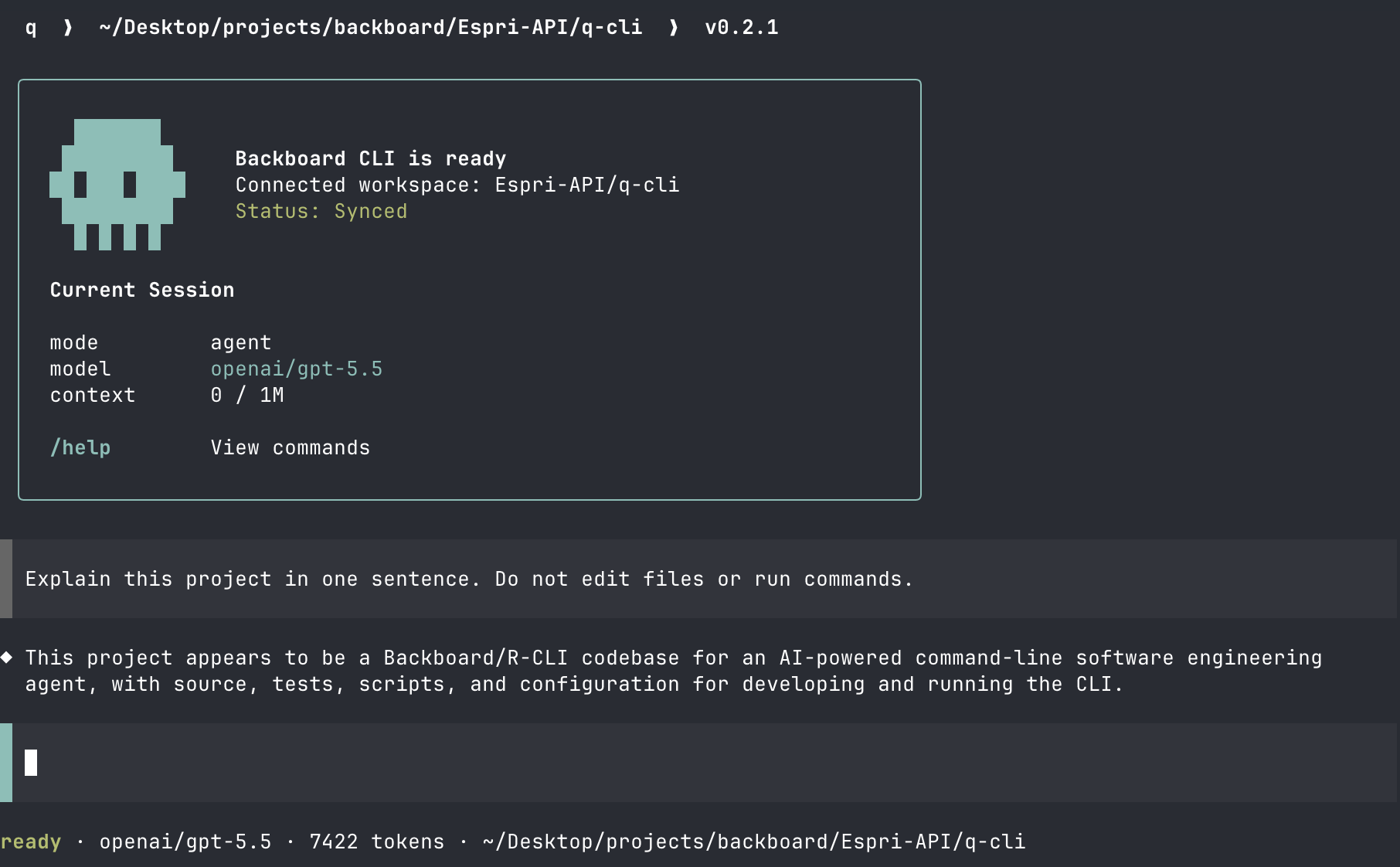
A simple prompt and response in the terminal.
R-CLI can read files, search the repo, edit files, run commands, use web search, fetch URLs, and ask you questions. Watch the terminal output so you know what it is doing.
Steer or queue while R-CLI works
While a task is running, R-CLI shows Tab to queue · Enter to steer below the input box. You can keep typing without waiting for the turn to finish:
| Action | What it does |
|---|---|
Press Enter | Steer the current turn with new instructions |
Press Tab | Queue your message for the next turn |
Press Esc | Interrupt the current turn |
The placeholder while busy reads (working - press Ctrl+C to interrupt). Both Esc and Ctrl+C interrupt the turn.
Steering is useful when you want to correct direction immediately:
Actually keep this change minimal and do not touch the API layer.
Queueing is useful when the agent is still working, but you already know the next thing you want:
After that, add a regression test for this case.
Review changes safely
R-CLI records a checkpoint for every turn, so you can revert its edits directly:
/undo
See Checkpoints for the full undo, redo, and rewind flow.
You can also use git as a second layer:
git status
git diff
git restore path/to/file
Avoid broad cleanup commands unless you are sure they will not remove untracked work.
Attach files
Drag files onto the terminal to attach them to your next message, or press Ctrl+V to attach an image from your clipboard. See Attachments for supported types and limits.
One-shot mode
Use --print when you want one answer and then exit:
backboard --print "summarize this repo"
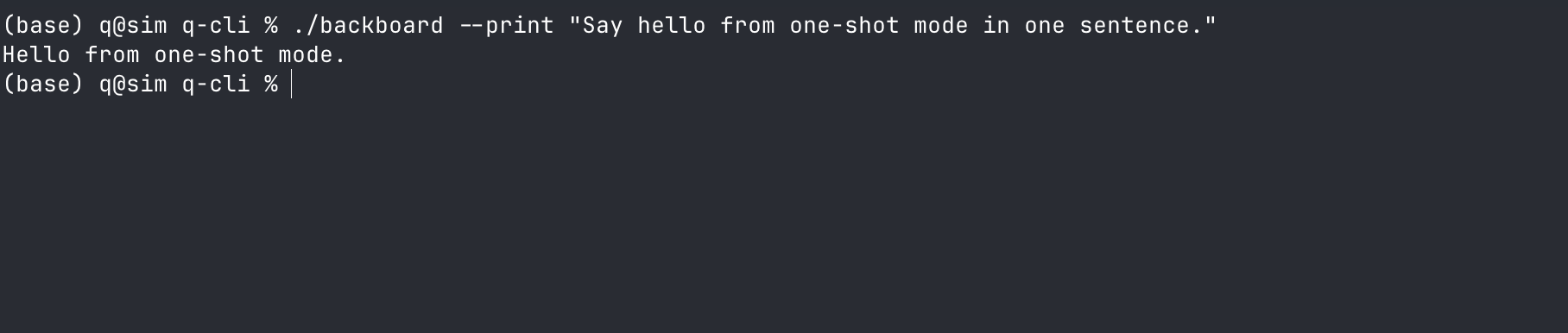
One-shot mode prints an answer and exits.
Useful one-shot patterns:
backboard --cwd /path/to/project --print "find the TODO comments"
backboard --format json --print "summarize this repo"
echo "summarize this repo" | backboard --format json
--print runs non-interactively, so R-CLI cannot show permission prompts. Any tool call that would normally ask is denied automatically. Before scripting R-CLI, pre-approve the tools it needs in .backboard/settings.json, or pass --permission-mode bypass. See Permissions.
Troubleshooting
backboard: command not found
Restart your terminal, then run the install command again.
Login does not complete
Run:
backboard login
Open the printed URL in a browser where you can sign in to Backboard, or scan the QR code with your phone. Approve the device login, then return to the terminal.
The agent changed a file unexpectedly
Revert the last turn:
/undo
Or inspect the diff first with git diff, then decide whether to keep it, edit it, or restore that file.
A tool call was denied automatically
You are running non-interactively, or a deny rule matched. See Permissions.
File search does not work
Install ripgrep, also called rg.
macOS
Ubuntu / Debian
brew install ripgrep