

- R-CLI
- Session Settings
R-CLI
Session Settings
Change the model, thinking mode, memory, and session toggles from one panel or with individual commands.
Open the settings panel:
/settings
Also available as /config. Navigate with ↑/↓, press Enter to toggle a row or open a picker, and Esc to close.
| Row | What it controls | Persists |
|---|---|---|
| Memory | Whether Backboard reads and writes memories | Yes |
| Verbose | Detailed tool-call output | Yes |
| Notify | Sound when a turn finishes | Yes |
| LSP | Language-server diagnostics | Session only |
| Browser | Browser automation tool | Session only |
| Computer use | Local computer control | Session only |
| Discovery | Skill and MCP discovery tools | Session only |
Persisted settings are saved to ~/.backboard/config.json and apply to future sessions. Session-only toggles reset when you restart.
Switch models
/model
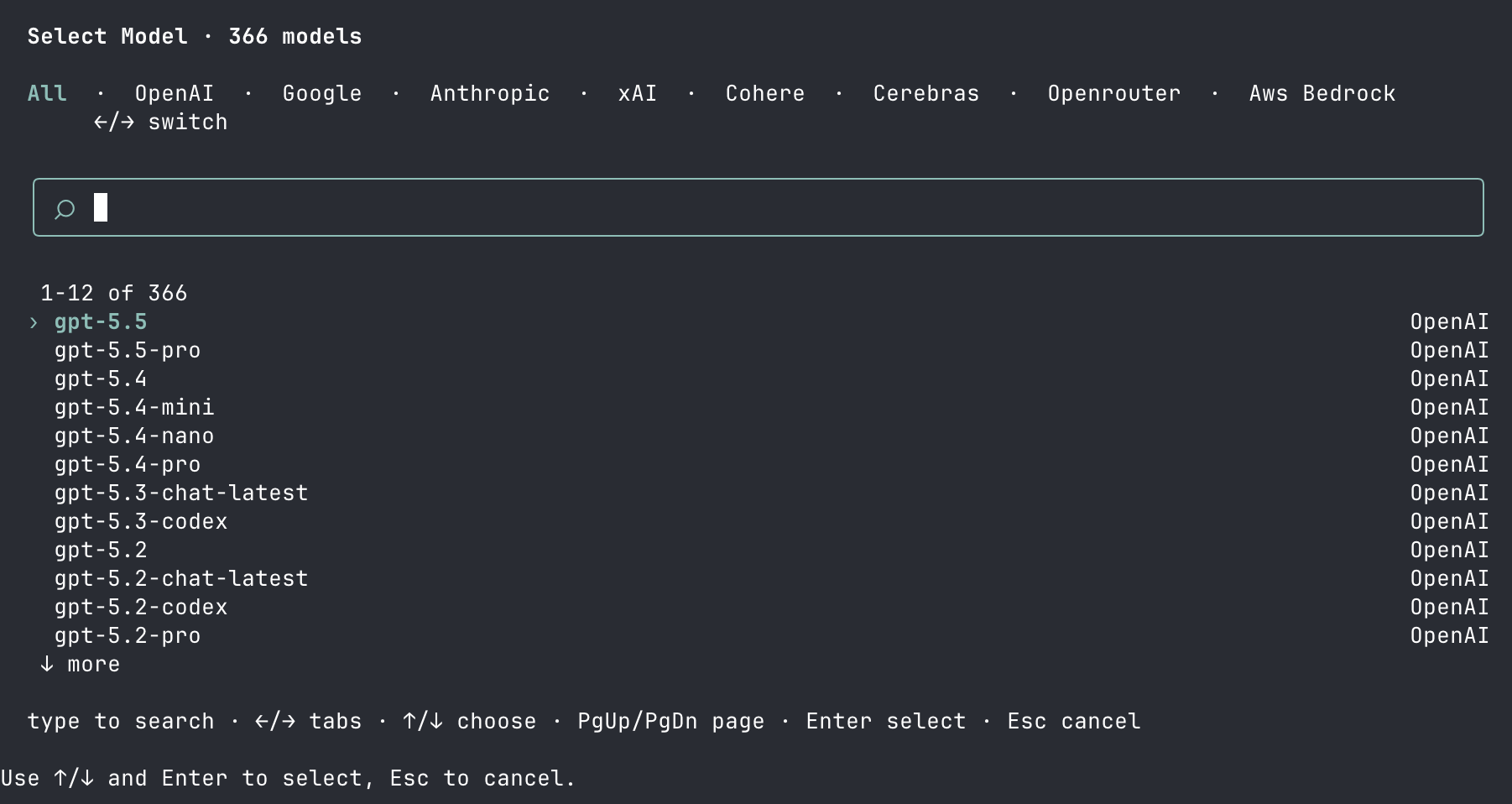
Use /model to search models and switch providers.
Use arrow keys to switch provider tabs, type to search, and press Enter to select. You can also choose a model at startup:
backboard --model openai/gpt-5.5
Model names use the shape provider/model.
Thinking mode
After selecting a model, R-CLI asks for a thinking mode when the model supports it.
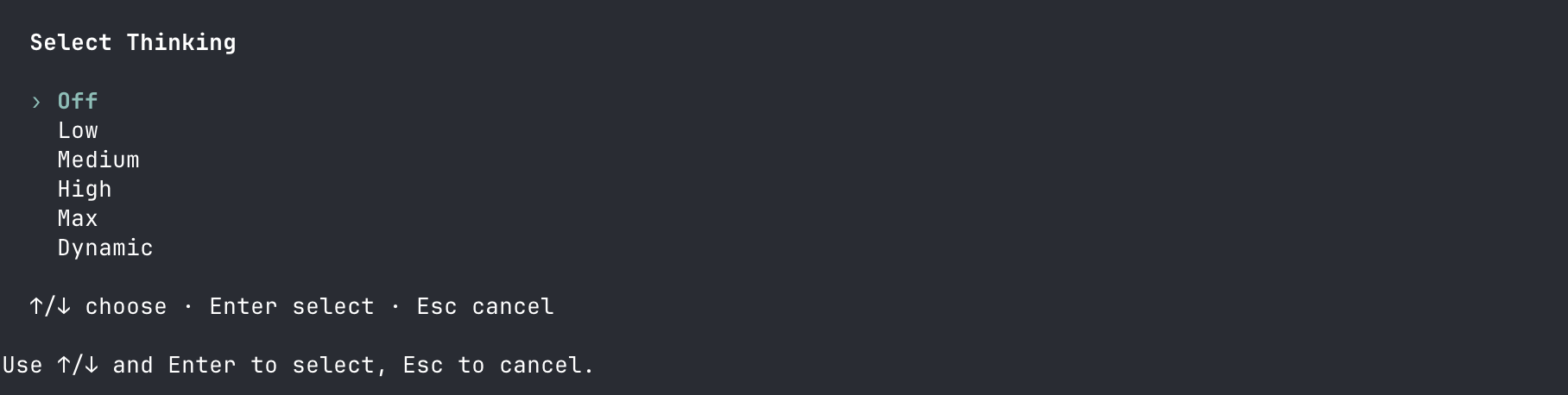
Thinking controls how much reasoning budget the model uses.
| Mode | Use it when |
|---|---|
Off | You want fast, simple answers |
Low or Medium | Normal coding and explanation work |
High or Max | Complex debugging, planning, or multi-file changes |
Dynamic | Let the model decide how much thinking to use |
backboard --thinking high
Memory
Memory lets Backboard remember useful context across conversations.
| Mode | Behavior |
|---|---|
off | Do not read or write memories |
on | Read and write memories |
auto | Let Backboard decide when memory is useful |
readonly | Read existing memories, but do not save new ones |
backboard --memory on
backboard --memory readonly
backboard --memory on --memory-profile coding
See Memory for how memories are stored and retrieved.
Verbose output
/verbose
Toggles whether tool calls show their full output or a short summary. Verbose output is on by default.
Changing verbosity reprints the visible transcript at the new setting, so scrollback stays consistent rather than mixing both styles.
Notifications
/notify
Plays a sound when a turn finishes — useful for long tasks in a background window. On macOS this is the system Glass tone; on other platforms it rings the terminal bell.
Language-server diagnostics
/lsp
Attaches language servers so the agent sees real diagnostics on files it edits, instead of guessing whether a change compiles. Supported languages include TypeScript, Python, Go, and R; servers are installed automatically where possible.
backboard --lsp
backboard --no-lsp
Starting a language server can take a moment on a large project. The settings panel shows a pending indicator while it attaches.
Browser and computer use
Enable browser automation:
/browser
The browser tool can navigate, click, type, take screenshots, and inspect pages through Chrome DevTools. R-CLI opens a browser lazily when the agent first uses the tool.
Enable local computer use:
/cua
The computer tool can capture local screenshots and interact with your desktop. Use it only when the task needs GUI interaction.
Threads and sessions
Start a fresh thread, clearing context and staged attachments:
/new
Resume an earlier session:
/sessions
Configuration files
| Path | Holds |
|---|---|
~/.backboard/config.json | Model, memory, verbose, and notify preferences |
<repo-root>/.backboard/settings.json | Permission rules and mode |
<repo-root>/.backboard/mcp.json | MCP servers |
<repo-root>/.backboard/hooks.json | Hooks |
Related
- Permissions — the one setting that is not in this panel
- Command reference — every command and flag
- Models — how providers and model names work